AI tools
Your AI tool, wired into Xero, QuickBooks Online and Zoho Books
Add Rows MCP to the AI tool you already use, sign in with your Rows account and choose what it may do. Then ask about your books in plain English. You don't need Excel open for this.
Rows MCP is coming soon. You can follow these steps once it's live.
- Less than 1 minute


 Xero, QuickBooks Online, Zoho Books and more



 Claude, ChatGPT, Microsoft Copilot, Cursor and more
Before you connect your AI tool
- A Rows account with at least one entity connected. Not done yet? Follow Connect Xero to Excel, Connect QuickBooks Online to Excel or Connect Zoho Books to Excel first.
- An AI tool that can add a custom connector or remote MCP server, such as Claude (every plan, Free included), ChatGPT, Microsoft Copilot or Cursor.
- Your Rows login. The AI tool sees the same entities you see in Rows, so sign in as yourself, not with a colleague's login.
Add Rows to your AI tool and ask about your books
Open your AI tool's connector settings
In your AI toolEvery AI tool keeps this setting in a different place:
 ClaudeGo to Customize, then Connectors. Select + Add, then Add custom connector. On Team and Enterprise plans, an owner adds Rows once for everyone.
 ChatGPTOn the web, go to Plugins, select +, then Add custom MCP server. When it's created, install it.
 Microsoft CopilotIn Copilot Studio, open your agent's Tools page. Select Add a tool, then New tool, then Model Context Protocol.
 CursorAdd Rows to your mcp.json file under mcpServers, with the server URL as its url. Then switch it on under Customize.Another AI toolLook for a setting called custom connector, MCP server or remote MCP.
Add Rows with the server URL
In your AI toolName it Rows and paste the server URL below. If it asks how Rows signs in, choose OAuth (in Microsoft Copilot, OAuth 2.0 with Dynamic discovery). Rows registers your AI tool by itself, so there's no client ID or key to copy. Then save it.Server URL Not live yethttps://api.rowsapp.com/mcp
Your AI tool, adding Rows Sign in with your Rows account
In your browserA Rows sign-in page opens in your browser. Sign in the way you do in Excel: your email and password, or Continue with Xero, Google, Microsoft, Intuit or Zoho. If you use two-factor sign-in, enter the code from your authenticator app.
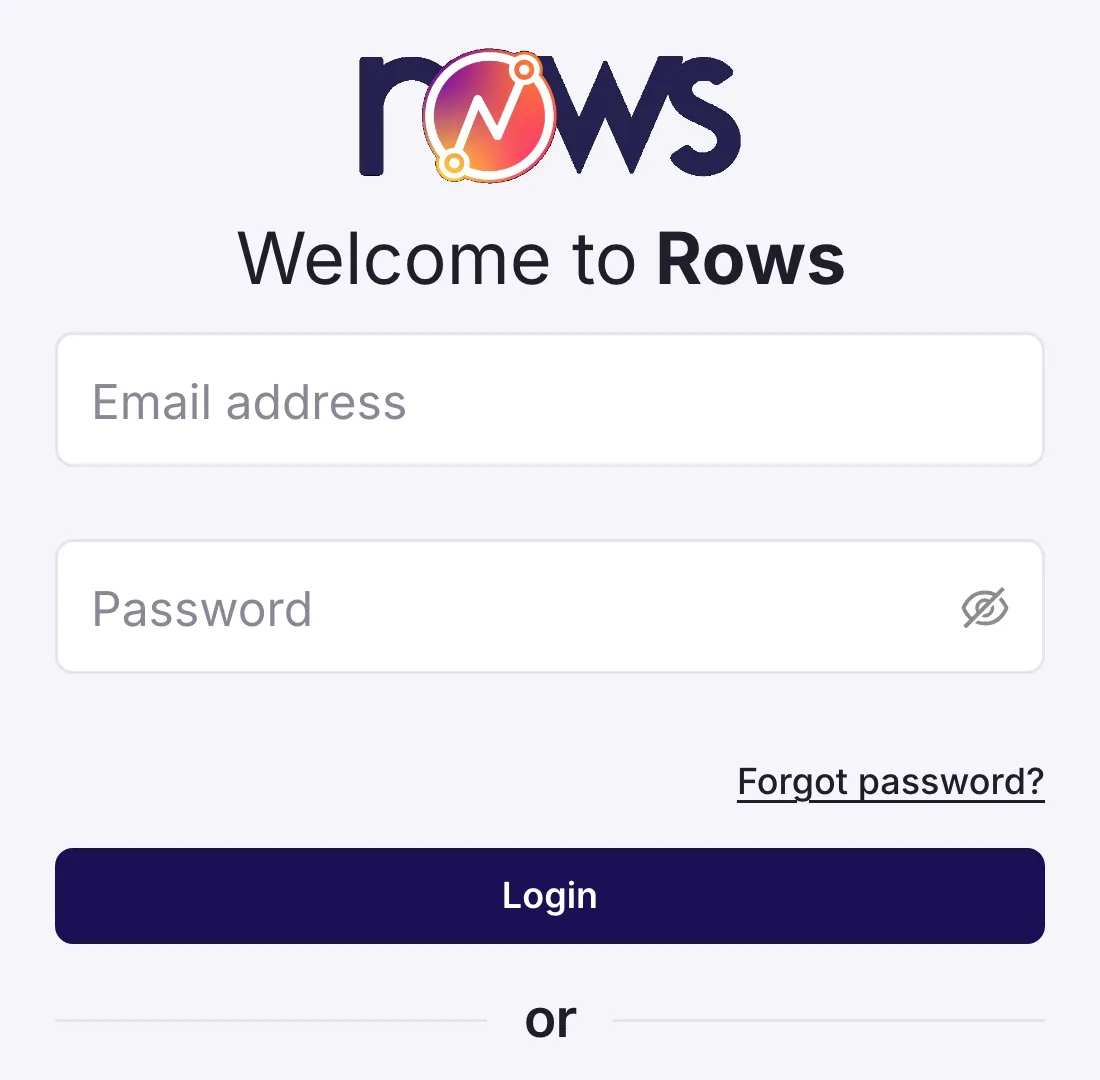
Rows sign-in Choose what your AI tool can do
In your browserBoth boxes start ticked. The first lets your AI tool run reports and read records in your entities. The second, Create and update records, lets it add or change records such as invoices, contacts and manual journals. Untick it to keep the AI tool read-only, then select Allow.
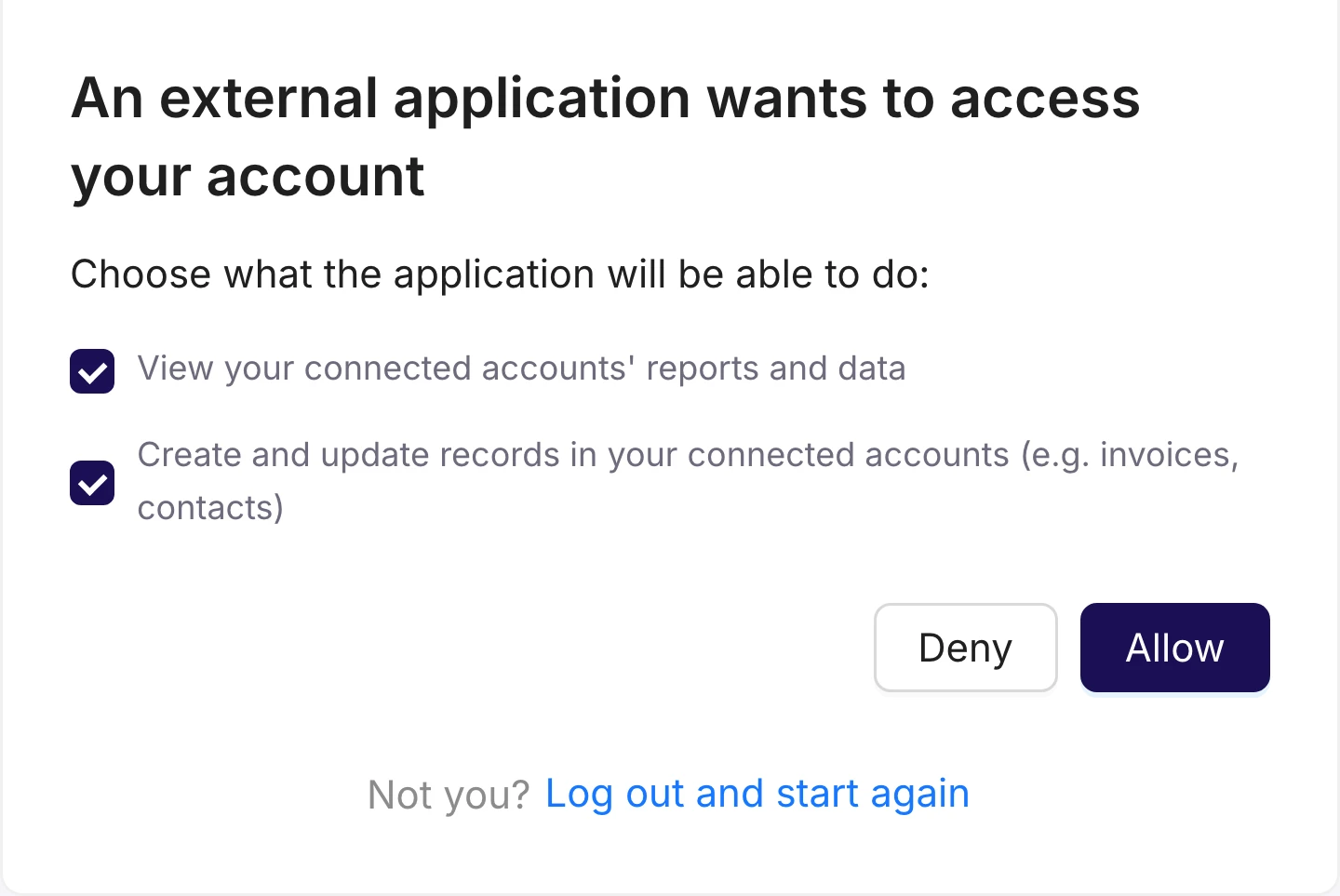
Rows, allow access Switch Rows on in a chat
In your AI toolBack in your AI tool, Rows now shows as connected. Start a new chat and check that Rows is switched on. In Claude, select + at the bottom left, then Connectors. In ChatGPT, type @ and pick Rows.
Your AI tool, a new chat Ask your first question
In your AI toolName the entity as it appears in Rows, for example: What was gross profit for Malta Ltd each month last quarter? Most AI tools ask before they use Rows, and again before anything that changes your books. Allow it, and the answer comes from the live figures in your books.
 Add custom connector


Change or disconnect it later
Change what it can do
Remove Rows in your AI tool's connector settings and add it again. Rows asks the same two questions, so tick only what you want.
Disconnect it
You can only do this in your AI tool, not in the Rows portal. Remove Rows in its connector settings, where you added it in step 1. Your books and your Rows account stay as they are.
Limit what a colleague's AI tool sees
Their AI tool reads only the entities they can use in Rows. Change that in the Rows portal, as in Add a colleague and choose what they see in Excel.
If your AI tool can't reach your books
My AI tool says it can't connect to Rows
Check the server URL is exactly https://api.rowsapp.com/mcp, with nothing after it. If the Rows page says the request is unknown or expired, or shows Invalid authorization request, close it and start again from your AI tool. Each sign-in link works once.
It can't see one of my entities
Rows MCP reads the entities your Rows login can use. Check the entity is connected under Entities in the Rows portal, or ask whoever runs your Rows account for access. Entities stop answering if your trial or plan has ended.
It answered about the wrong entity
Name the entity exactly as Rows shows it, such as Malta Ltd, and ask it which entity it read. If two names are alike, add the platform: "Malta Ltd on Xero".
How do I stop my AI tool using Rows?
Remove Rows in your AI tool's connector settings. That's the only place to do it: the Rows portal doesn't list AI tools or let you remove them. Your books and your Rows account stay as they are.
Can my AI tool change my books?
Only if you left Create and update records ticked in step 4. Rows then checks the fields and sends the record straight to Xero or QuickBooks Online; there is no draft to approve first, as there is when you post from Excel. To keep it read-only, untick that box when you connect.
Next step
Next guideStuck in Excel? Rows Assist to the rescuePrefer to stay in Excel? Rows Assist answers the same kind of questions in the Rows pane, with nothing else to set up.Looking for question ideas? See the examples on Rows Assist and Rows MCP. On Xero and weighing up Xero's own connector? Read Xero MCP Server vs Rows MCP. For anything else, browse every guide in the Help centre.
Talk to a person
Email support
Tell us what you see on screen. We reply within 24 hours on working days.
support@rowsapp.comBook an onboarding call
Free during your trial. We'll connect your entities with you and set up your first live report.
Book a call