Connect your books
Connect Xero to Excel
Connect your Xero entity once in the Rows portal, then pick it in Excel. Your reports then refresh straight from Xero.
- Less than 2 minutes
 Xero
- Excel for Windows and Mac
Before you start
- A Xero login with a standard or adviser role for the entity you want to connect.
- A Rows account. You sign in to the Rows portal and to Excel the same way, so use the login you signed up with.
- Rows in Excel for Windows or Mac (any recent version that can install add-ins). Not there yet? Install the Excel add-in first.
From Xero to your workbook
Choose Xero in the Rows portal
In your browserIn the Rows portal, open Entities and select Connect entity. Under Choose your accounting system, select Xero.
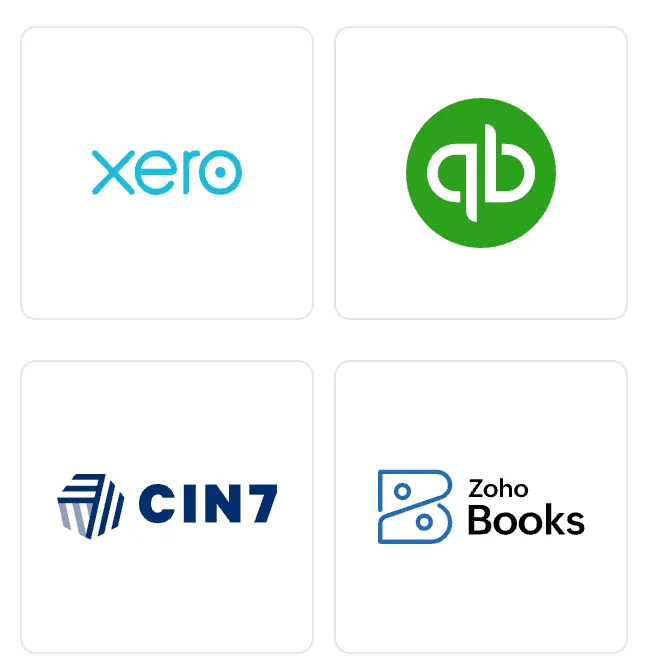
Rows portal, Connect an entity Log in to Xero and pick the entity
In your browserLog in to Xero and choose the entity to connect. Work in several? Select them all here and they connect together in one go.
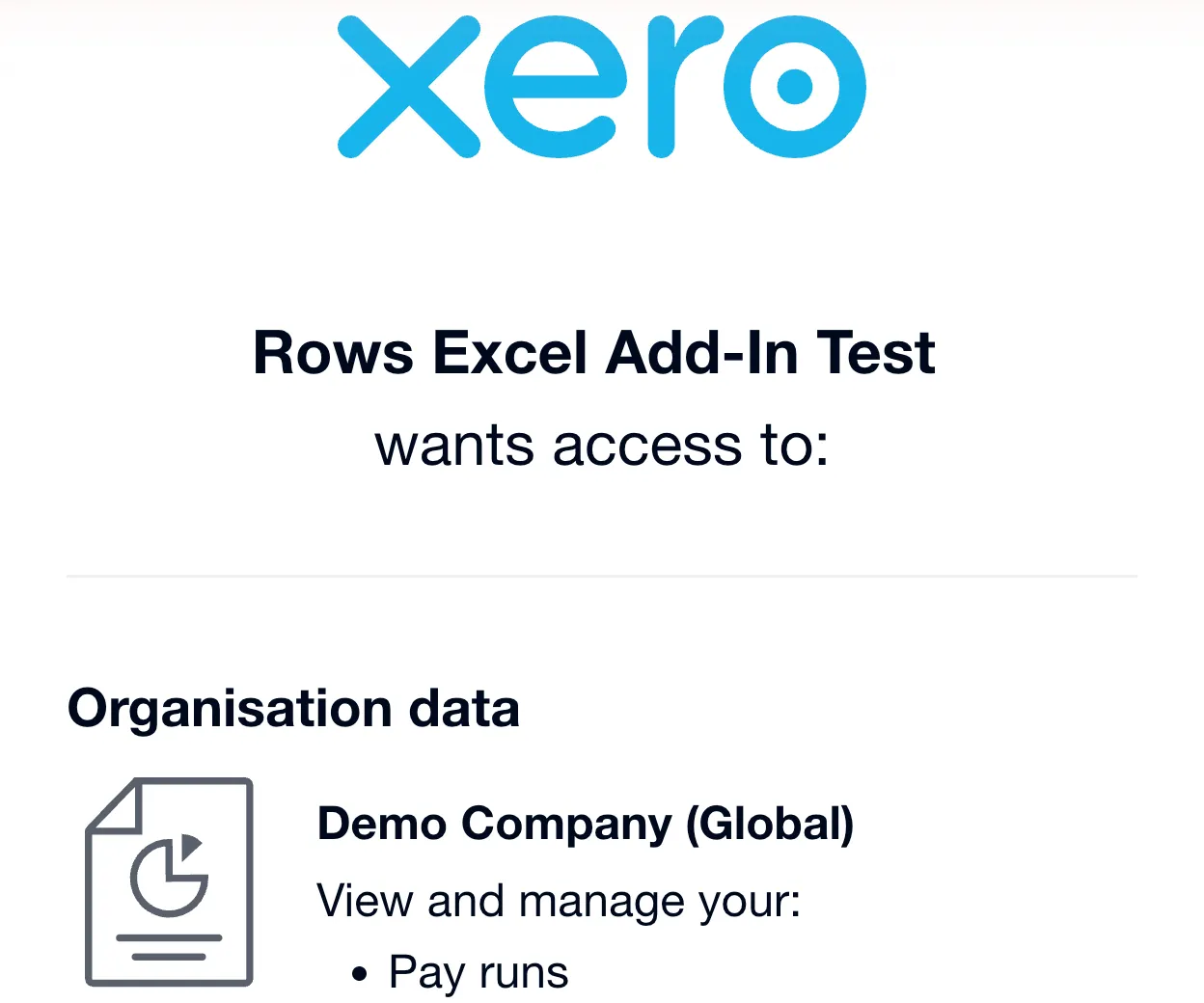
Xero, consent screen Allow access
In your browserSelect Allow access. Xero takes you back to the Rows portal, where the entity shows as Connected under Entities.
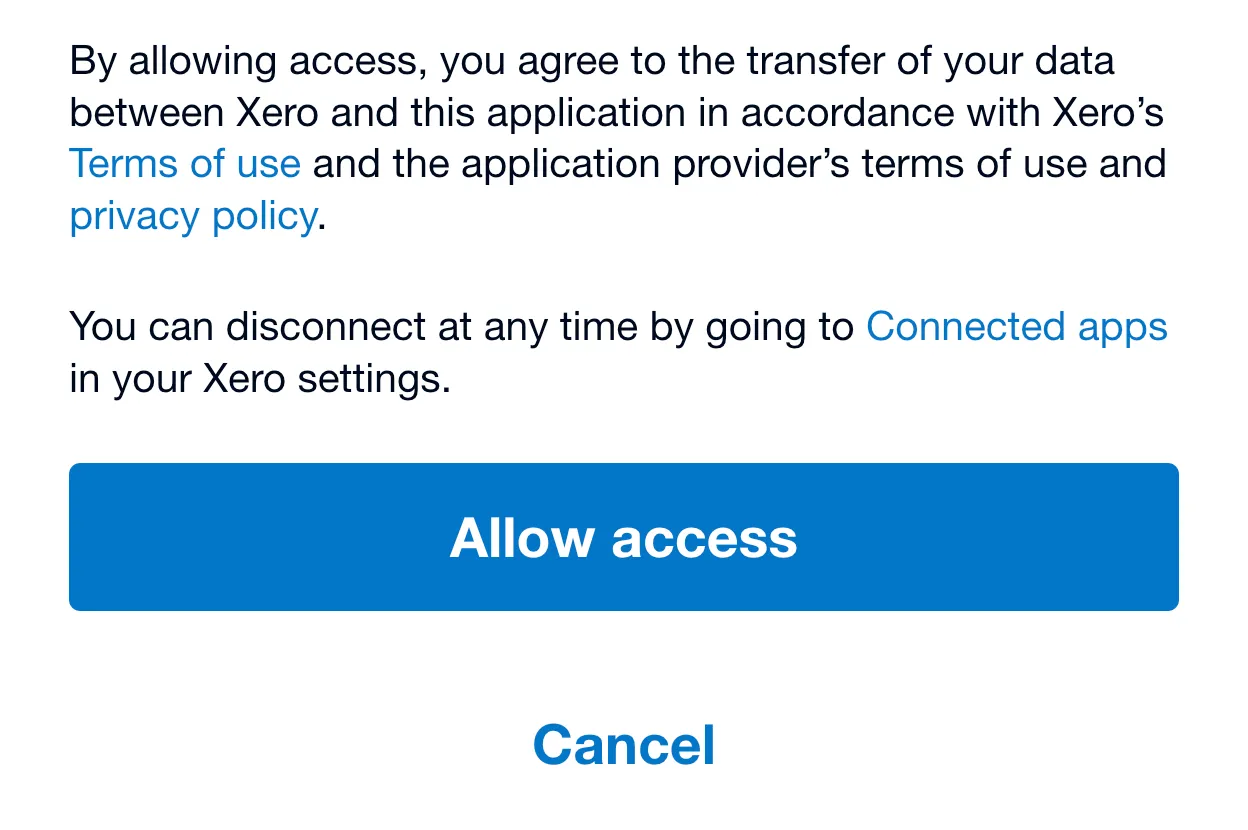
Xero, Allow access
Your entity is connected. Now switch to Excel.
Pick the entity in Excel
In ExcelIn Excel, select Launch Rows add-in on the Home tab. Sign in the same way you signed up (email, Xero, Google, Microsoft or Intuit): a different way opens a different Rows account, without your entity. Under Choose your Entity, find the one you connected (search, or use Recent and Starred) and select Continue. Its name shows under the Rows logo and the Dashboard opens.
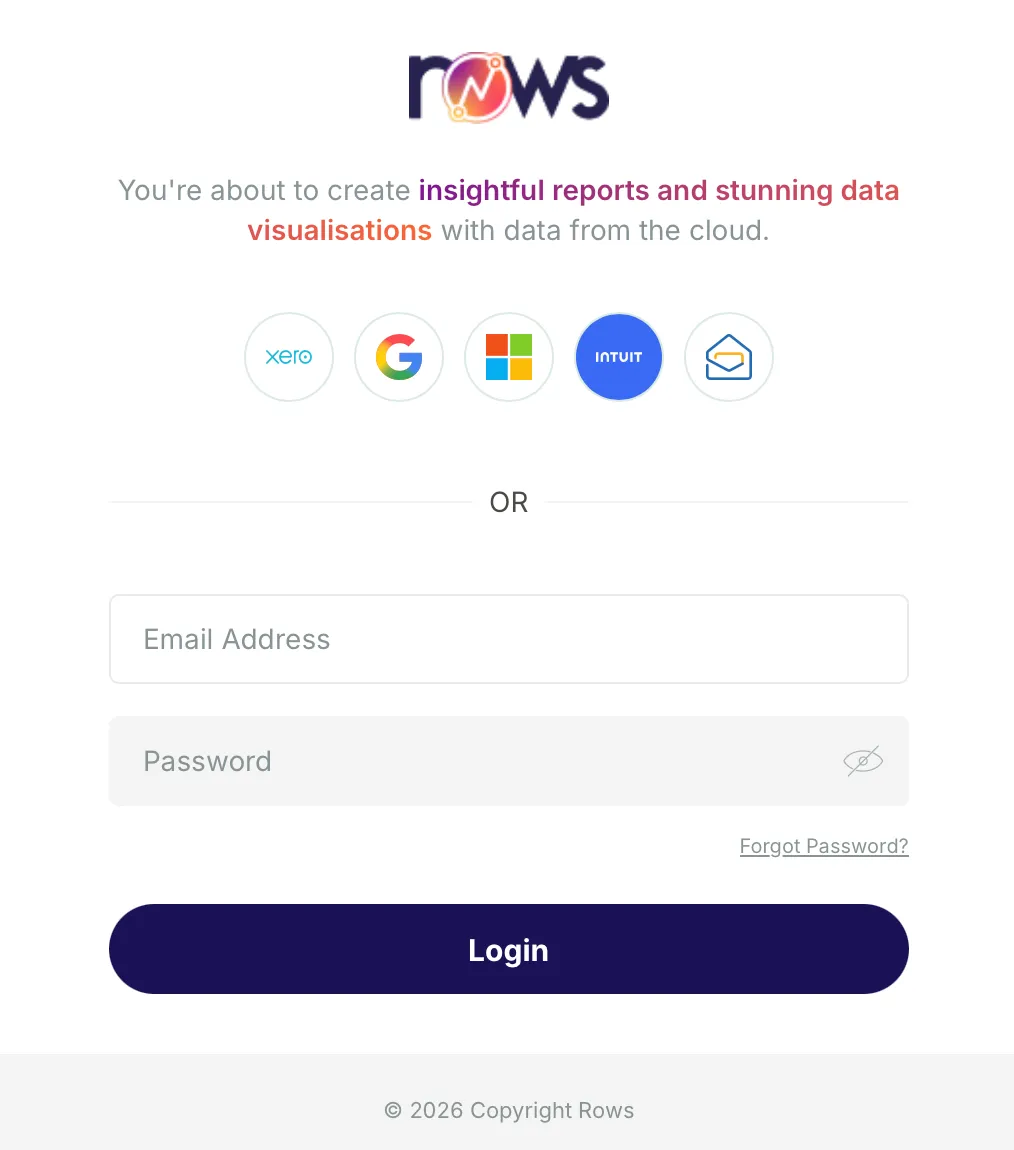
Rows pane, sign in 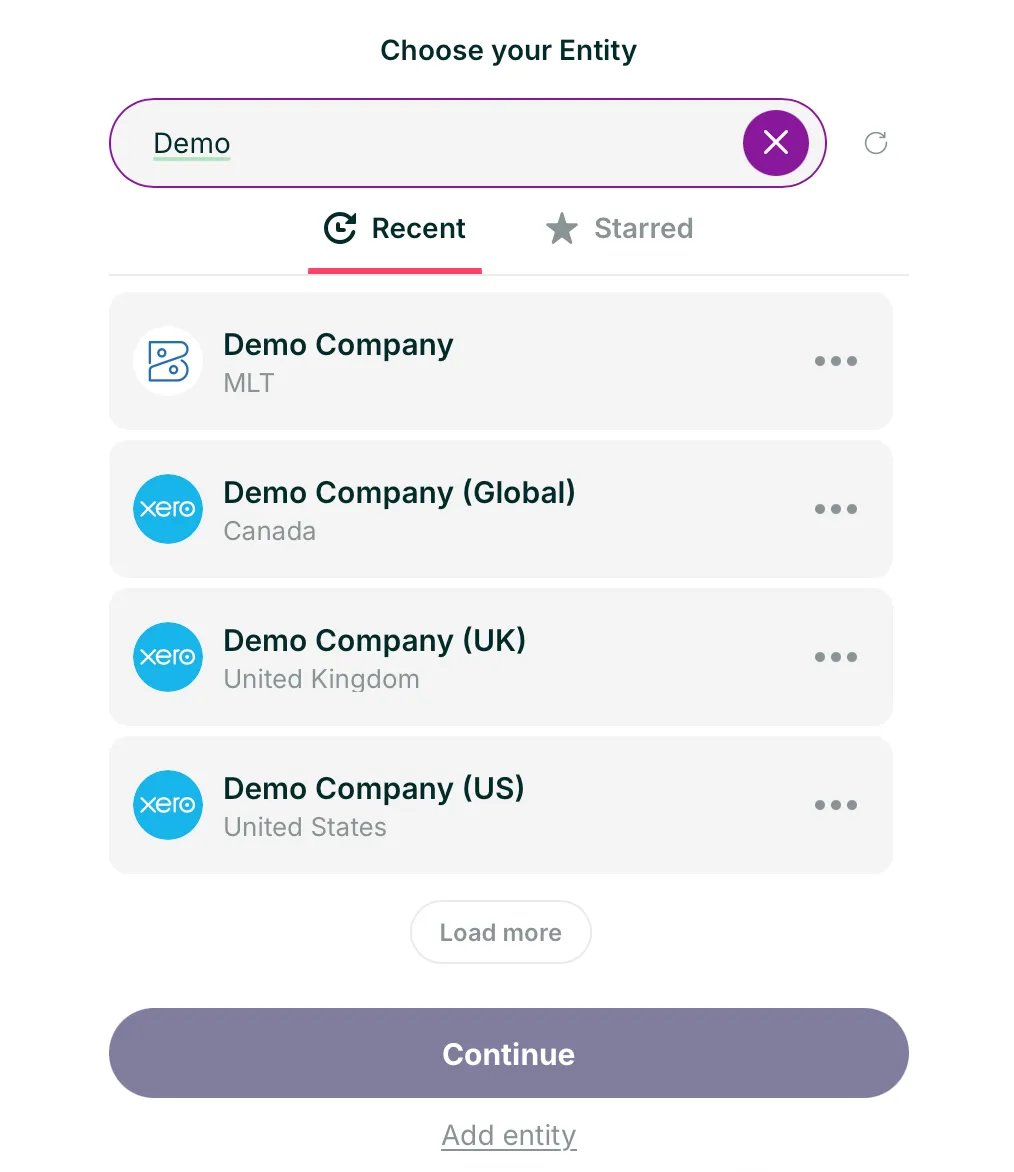
Rows pane, Choose your Entity
Reconnecting to Xero
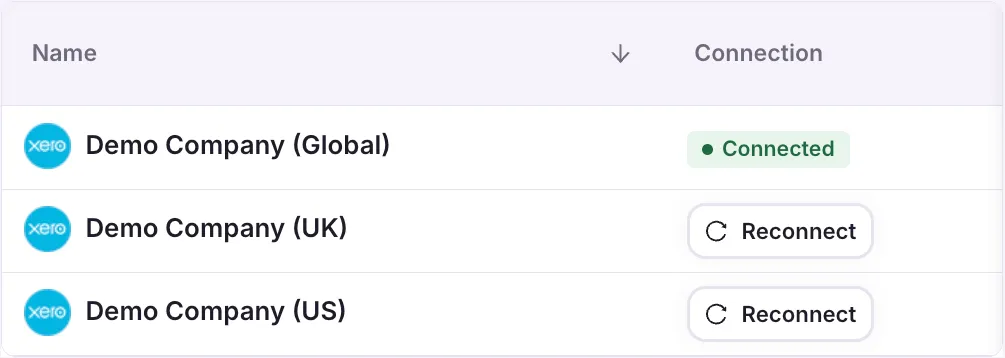
From time to time the link between Rows and Xero drops. Xero ends connections every so often, and removing Rows under Connected apps in Xero does the same. Nothing is lost: your workbooks, formulas and figures stay as they are. The entity shows Reconnect in the portal, and its reports refresh again once you reconnect.
- In the Rows portal, open Entities.
- In the Connection column, select Reconnect next to the entity.
- Log in to Xero if it asks, and select Allow access again.
- Back in Excel, refresh your reports. Your formulas and layout stay as they were.
If something goes wrong
Can I connect more than one Xero entity?
Yes. Select them all on Xero's screen in step 2 and they connect together, or add more later the same way. In Excel, move between them with Switch Entity in the pane menu. Your plan sets how many you can connect.
Xero keeps asking me to reconnect
That's the Rows connection to Xero, not your bank feed, and it needs renewing now and then. Follow Reconnecting to Xero. If it happens straight away, check your Xero role still covers that entity.
My entity isn't in the list in Excel
Check it shows as Connected under Entities in the Rows portal. If it does, select the refresh arrow next to Search Entities in the Rows pane. If it doesn't, go back to step 1 and make sure you choose that entity on Xero's screen.
I can't see Launch Rows add-in in Excel
Select Add-ins on the Home tab and open Rows from there. Not listed? Install it first (see Before you start).
How do I disconnect Rows from Xero?
In the Rows portal, open Entities, select the three dots next to the entity and choose Delete entity. You can do the same in Excel: on Choose your Entity in the Rows pane, select the three dots next to it and choose Delete. From the Xero side, remove Rows under Connected apps in Xero.
Next step
Next guidePull your first reportRun a profit and loss for your Xero entity from the Rows pane and refresh it whenever the books change.On QuickBooks Online? Follow Connect QuickBooks Online to Excel instead. Looking for something else? Browse every guide in the Help centre.
Talk to a person.
Email support
Tell us what you see on screen. We reply within 24 hours on working days.
support@rowsapp.comBook an onboarding call
Free during your trial. We'll connect your entities with you and set up your first live report.
Book a call