Reports and posting back
Use a report template
Download a ready-made report pack from the Rows pane, choose the month and refresh it from your own Xero or QuickBooks Online entity.
- Less than 3 minutes

 Xero and QuickBooks Online
- Excel for Windows and Mac
Before you start
- A Xero or QuickBooks Online entity connected to Rows. Not done yet? Follow Connect Xero to Excel or Connect QuickBooks Online to Excel first.
- Rows open in Excel for Windows or Mac, signed in, with that entity's name under the Rows logo in the pane.
From template to live report
Open the templates list
In ExcelIn the Rows pane, select Run Report, then Use Rows Templates at the top. The list follows the platform of the entity under the Rows logo: six templates for Xero, two for QuickBooks Online. You can also browse the same templates in the Templates Library in the Rows portal before you download one.
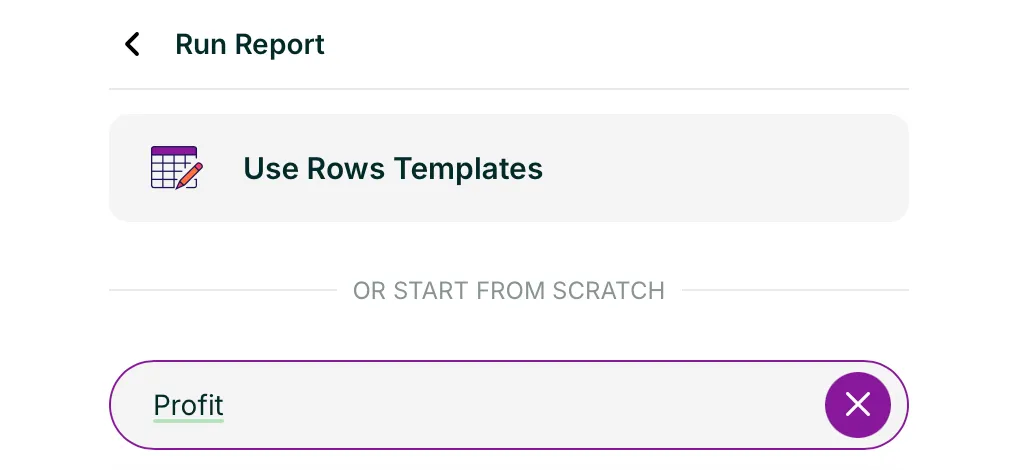
Rows pane, Run Report 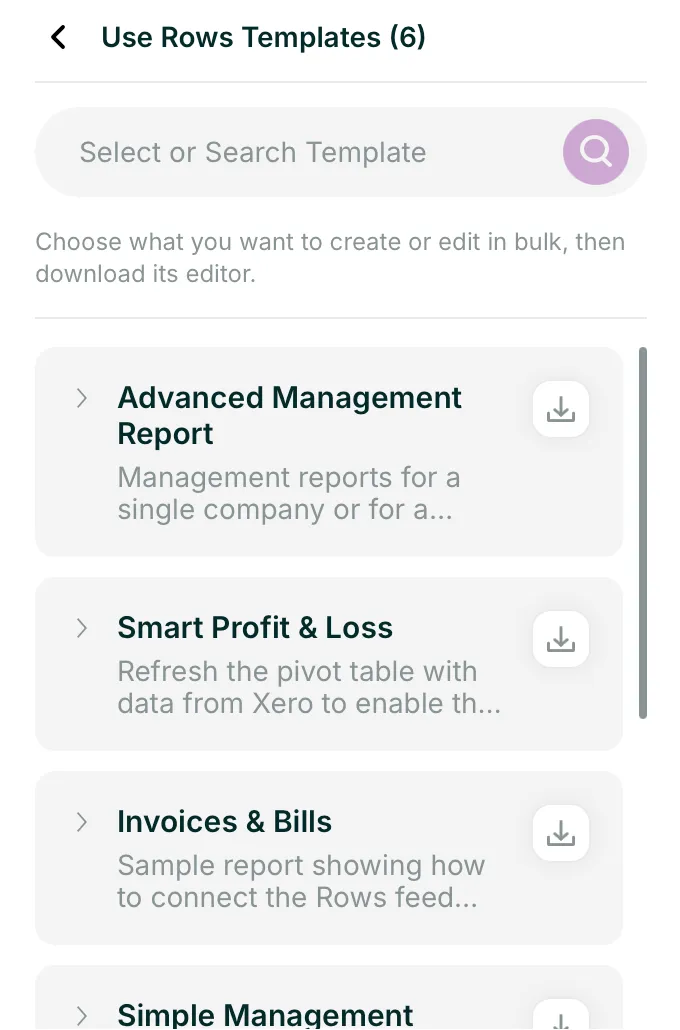
Rows pane, Use Rows Templates Download the Simple Management Report
In ExcelSelect the arrow beside Simple Management Report to read what it holds, then the download button on its right. It opens as a new workbook with four sheets: Notes & Controls, then the trial balance, balance sheet and profit and loss. Save it under your own name.
Rows pane, Simple Management Report Choose the month and periods
In ExcelOn Notes & Controls, pick the Report month and type the Report year. Leave Report period on Year to Date or change it, and set how many comparative periods you want (1 to 24). All three reports use these values when they refresh.
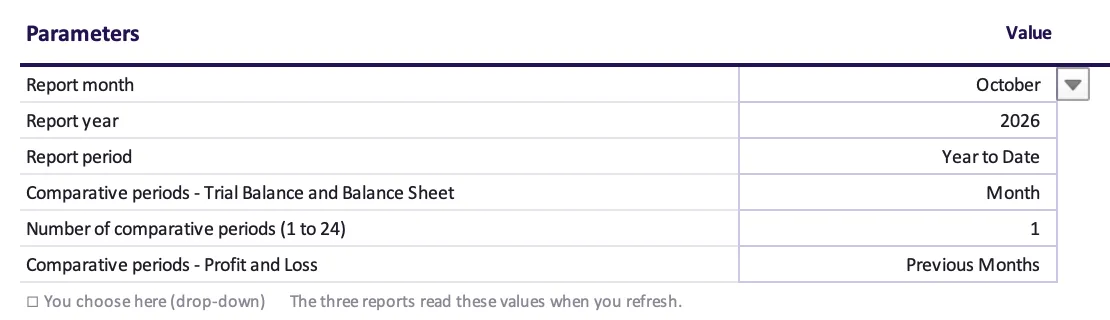
Excel for Mac, Notes & Controls Check the entity, then refresh
In ExcelEach report sheet has its own card in the Rows pane, with the entity it reads from under the sheet name. Check all three show yours. Tick the box above the cards to select them all, then select Refresh selected sheets.
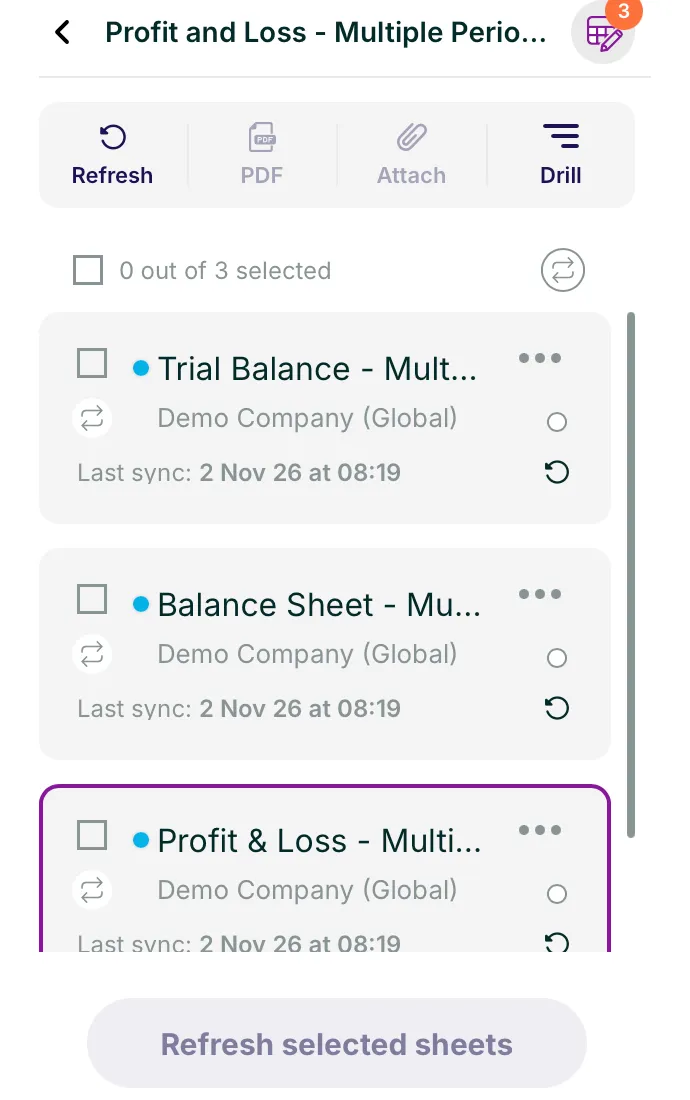
Rows pane, sheet cards Make it your own
In ExcelThe three sheets now hold your entity's figures for the period you chose. Add your own columns to the right of a report, or your own sheets of workings: they stay where you put them every time you refresh. Next month, change the Report month and refresh again.
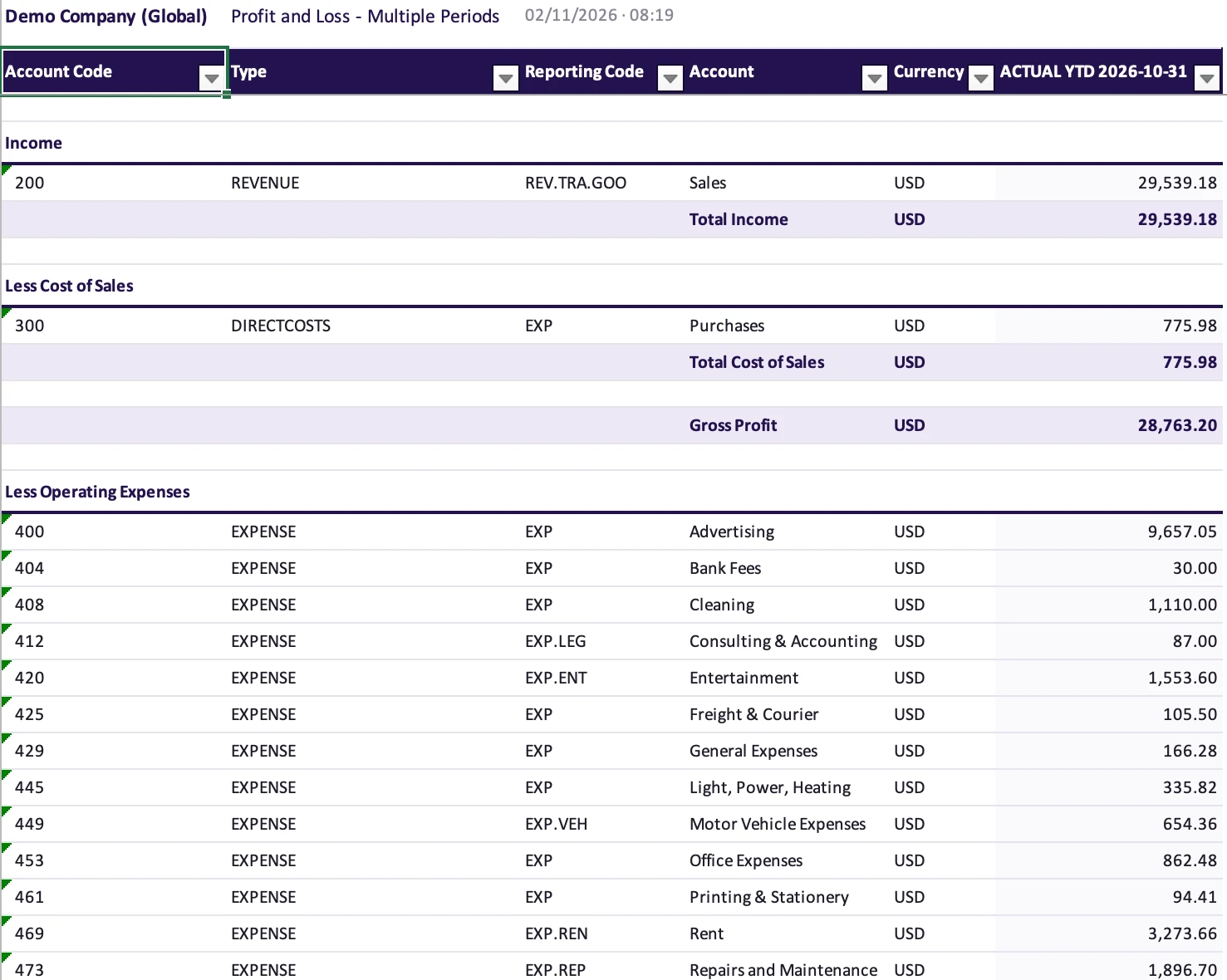
Excel for Mac, Profit & Loss - Multiple Period

The other templates work the same way: download, choose the settings on the first sheet, refresh. For Xero: Advanced Management Report, Smart Profit & Loss, Invoices & Bills, Aged Receivables and Aged Payables. For QuickBooks Online: Smart Profit & Loss.
If something goes wrong
The sheets are empty after I download the template
That's expected: a template opens with its layout but no figures. Choose the month on Notes & Controls, check the entity on each sheet card, then tick them all and select Refresh selected sheets (step 4).
The figures are for the wrong entity
Each sheet keeps its own entity, shown on its card in the Rows pane, so check every card before you refresh. To change one, select the icon with two arrows under its tickbox, search for the right entity and pick it, then refresh that sheet.
A check cell in the Advanced Management Report is red
The controls turn green at 0 and red when a check fails: profit for the year should match current year earnings, and assets should equal liabilities plus equity. Refresh every sheet so they cover the same date, then look for an account missing from your Reporting Groups sheet.
I can't find a template for my platform
The list follows the entity under the Rows logo, so switch to a Xero or QuickBooks Online entity with Switch Entity in the pane menu. Zoho Books has no report templates: build your report from scratch in Run Report instead.
Next step
Next guidePost journals and records from ExcelSend journals, invoices and other records from Excel to Xero or QuickBooks Online with a Create & Edit Data editor.Rather build a report from scratch? Follow Pull your first report. Looking for something else? Browse every guide in the Help centre.
Talk to a person.
Email support
Tell us what you see on screen. We reply within 24 hours on working days.
support@rowsapp.comBook an onboarding call
Free during your trial. We'll connect your entities with you and set up your first live report.
Book a call